Your iPhone isn't just a phone — it's a complete comic creation studio that fits in your pocket. With 77% of comic readers now consuming content primarily on smartphones, mobile is where comics live. And with AI-powered comic creation apps, you can produce professional-quality comic books wherever you are: on your commute, waiting in line, lounging on the couch, or sitting in a cafe. No laptop required, no drawing tablet needed.
The combination of iPhone's powerful camera, portable form factor, and AI comic generation creates something special: the ability to turn any moment into a comic. See something funny at the park? Snap a photo, turn it into a comic. Have a story idea during lunch? Type it out and generate a full comic book before your food arrives.
Why Create Comics on iPhone?
Mobile comic creation has some genuine advantages over desktop alternatives:
- Always with you. Inspiration strikes at random moments. With a comic creator on your phone, you can capture and create whenever ideas hit.
- Built-in camera. iPhone's camera is your direct connection to photo-to-comic conversion. See something interesting, photograph it, and transform it into comic art — all in one seamless flow.
- Instant sharing. Created a comic you love? Share it directly to Instagram, WhatsApp, TikTok, or any social platform without needing to transfer files between devices.
- Touch-native interface. Swiping through art styles, pinching to zoom on comic panels, and tapping to regenerate pages feels natural and fast on a touchscreen.
- Photo library access. Your entire camera roll — years of memories — is instantly available for comic conversion.
iCartoon: Your Mobile Comic Studio
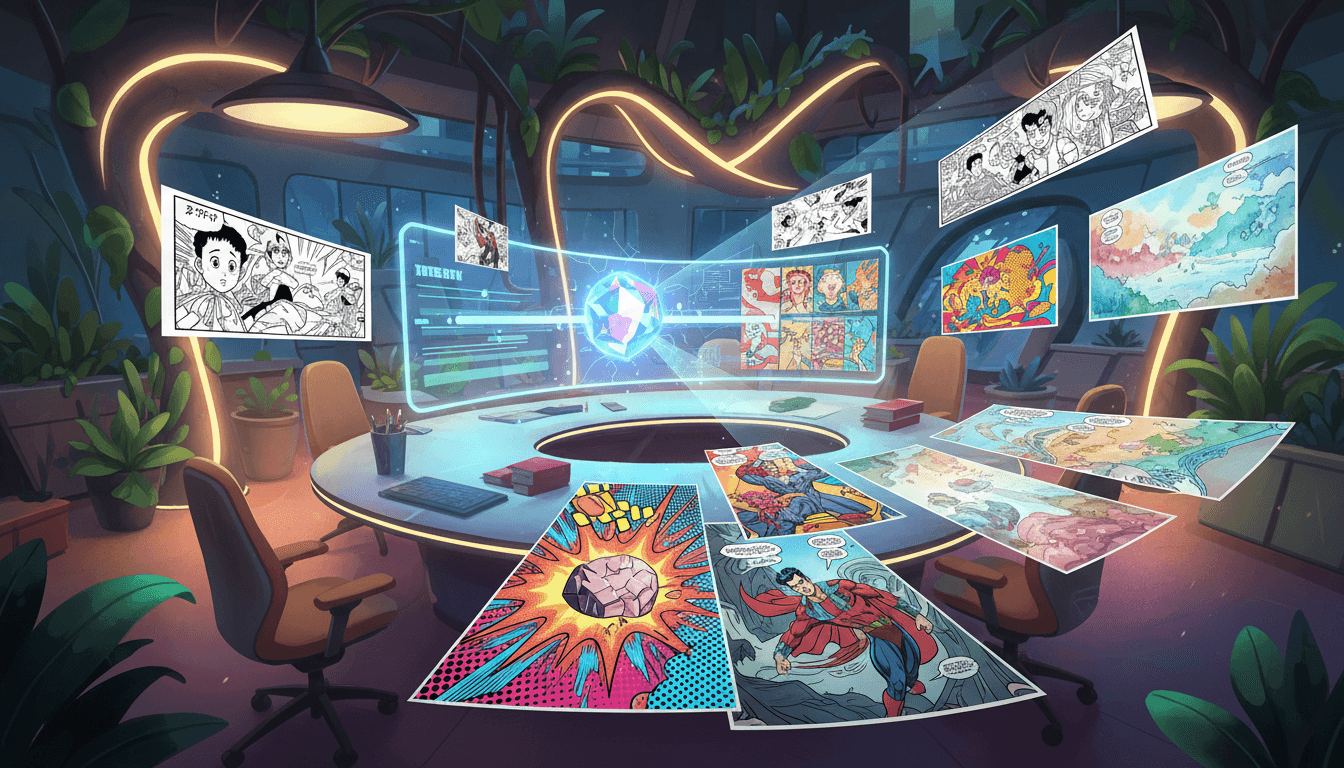
iCartoon is designed from the ground up for iPhone. It combines multiple AI comic creation methods in a single app, giving you everything you need to go from idea to finished comic in minutes.
Here's what you can do:
- AI Comic Creator — Type your story, pick an art style, and generate multi-page comic books
- Photo to Comic — Transform any photo into 20+ comic art styles
- Chat Comic — Build comics through conversation with AI — describe what you want, answer questions, and watch your comic take shape
- Quick Comic — Generate single-page comics from a brief prompt in under a minute
- Comic Series — Continue stories across multiple episodes with consistent characters
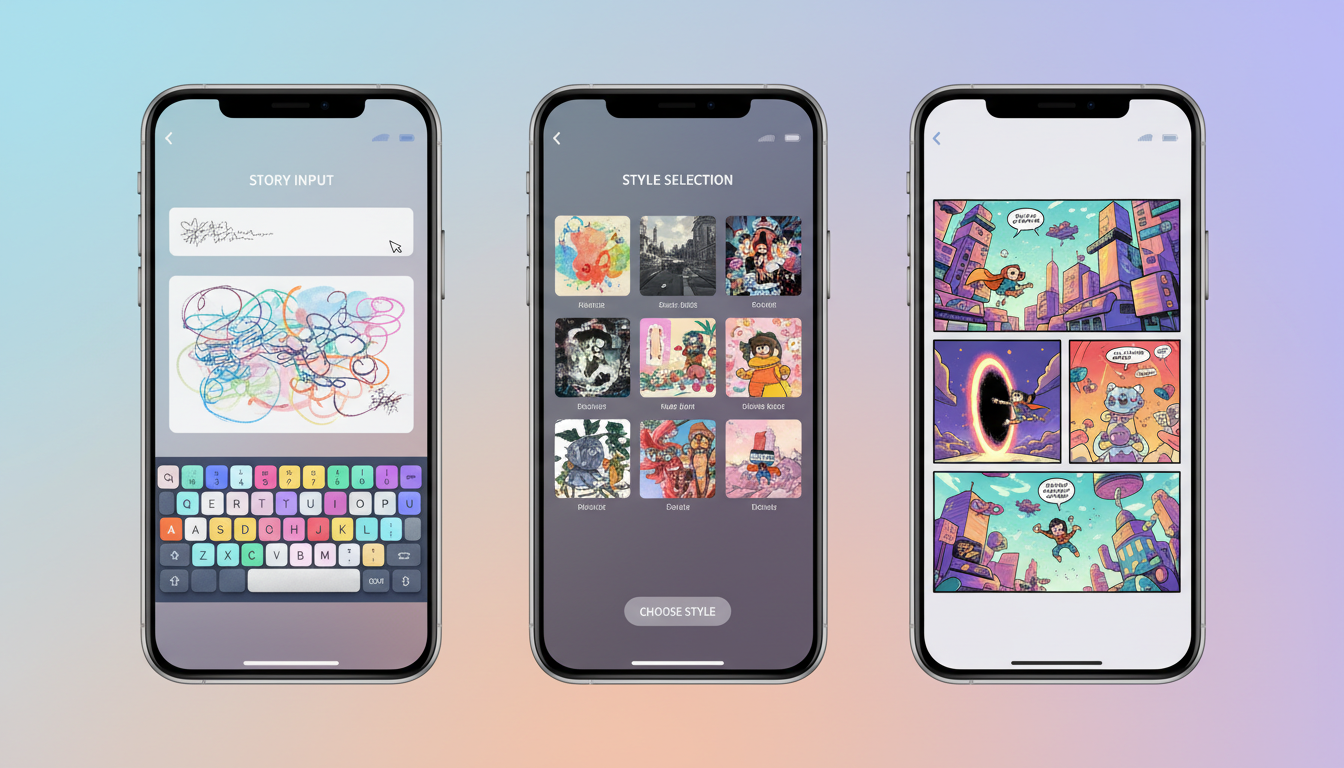
3 Ways to Create Comics on iPhone
Way 1: Text-to-Comic (Story-Driven)
Open iCartoon, tap Create, and start telling your story. Describe your characters ("a teenage girl with purple hair who can talk to animals"), your setting ("a magical forest school"), and your plot ("she discovers a mystery in the library"). Choose your art style — Manga, Spider-Verse, Chibi, or any of the 20+ options — and tap Generate.
The AI creates a complete multi-page comic book with consistent characters, panel layouts, dialogue, and narrative flow. Review each page, regenerate any panels you want to change, and save when you're happy.
Way 2: Photo-to-Comic (Camera-Driven)
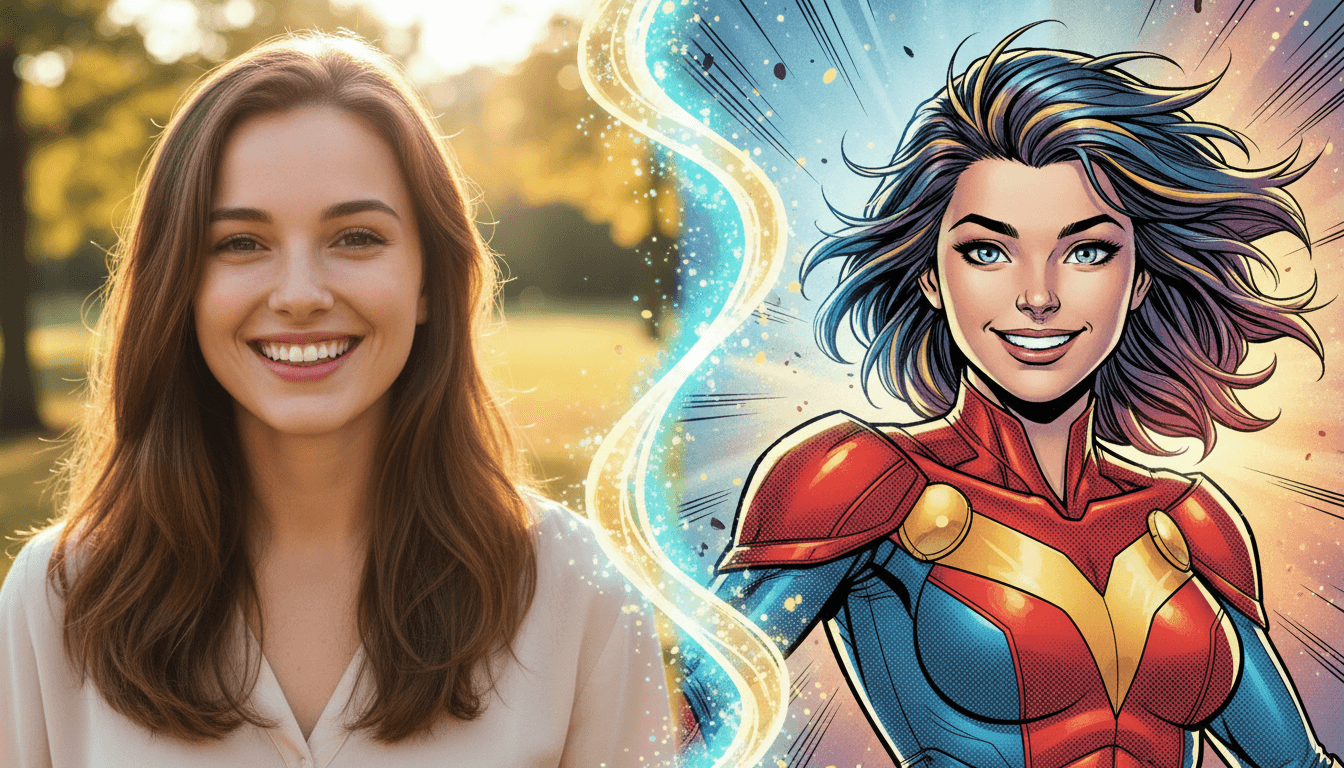
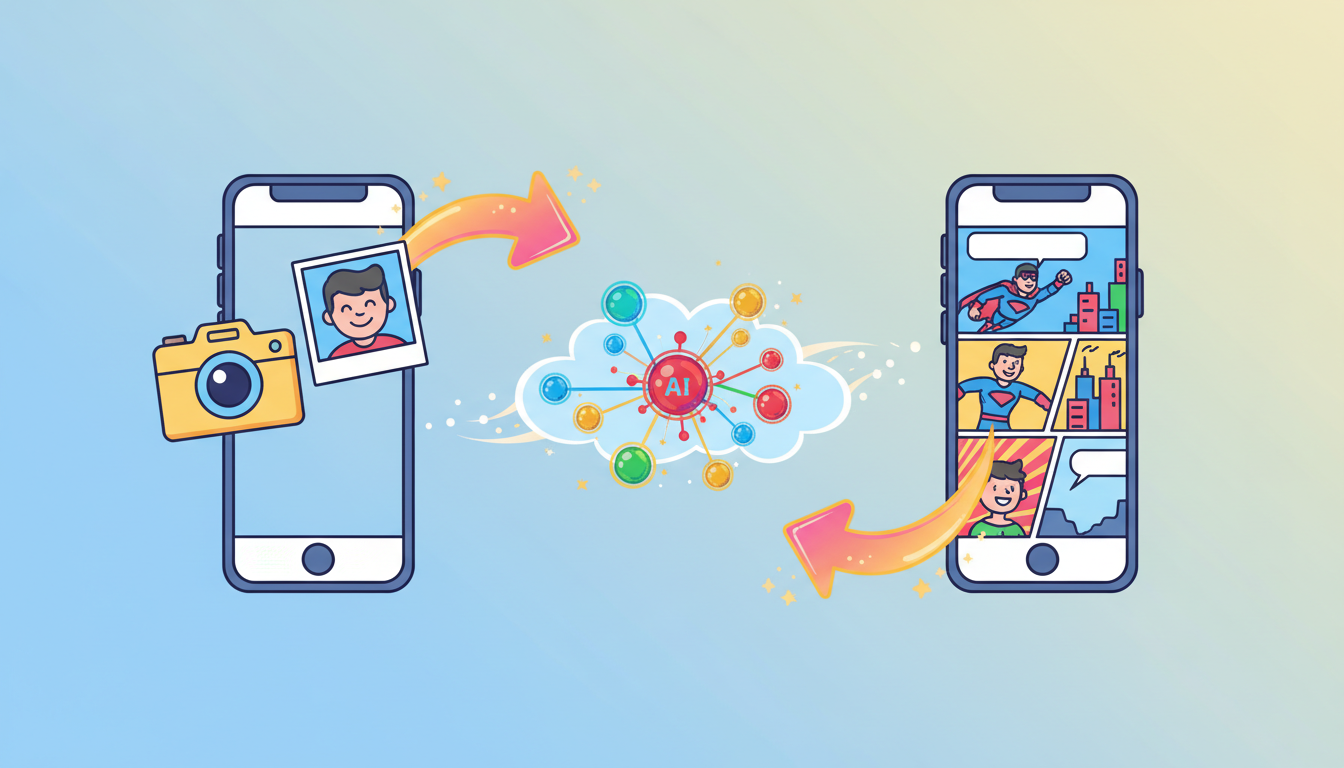
This is where the iPhone really shines. Tap the Photo to Comic feature, choose a photo from your camera roll or take a new one, select an art style, and generate. The AI transforms your photo into comic art in seconds.
Pro move: Take several related photos throughout your day, convert them all to the same comic style, and arrange them into a visual story. Your Saturday morning coffee, afternoon walk, and evening sunset become a beautiful day-in-the-life comic strip.
Way 3: Chat Comic (Conversation-Driven)
The most interactive way to create comics on mobile. Start a conversation with the AI: "I want to make a comic about my cat being a secret superhero." The AI asks follow-up questions — What's your cat's name? What's the villain? — and builds your comic collaboratively. Each message refines the story, and the final result feels like something you truly co-created.
Best Art Styles for Mobile Creation
Some art styles work particularly well on mobile screens. Here are our top picks for iPhone comic creation:
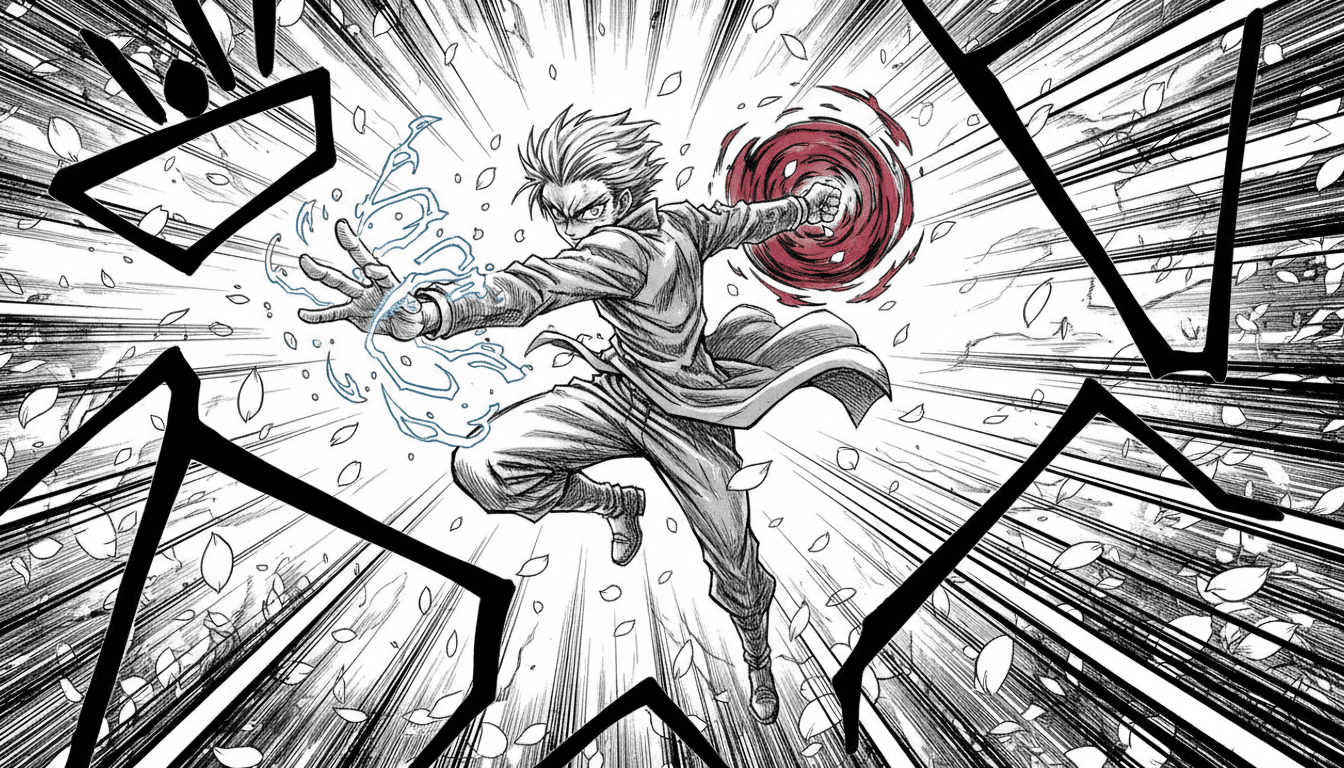
- Manga — Bold lines and high contrast read beautifully on phone screens. Great for action stories.
- Chibi — The cute, simplified style is perfect for mobile viewing. Works great for humor and slice-of-life content.
- Pop Art — Bold colors and strong graphics are eye-catching on small screens and social media.
- Spider-Verse — The modern animation style with halftone effects looks stunning on Retina displays.
- Webtoon — Originally designed for mobile reading, this style is optimized for vertical scrolling.
Download iCartoon for iPhone
Create stunning comics from your phone — text, photos, or chat. Free to start.
Get iCartoon Free →iPhone Camera Tips for Comic Photos
Since iPhone comic creation often starts with the camera, here are tips for capturing photos that convert well:
- Use natural light. Photos taken near windows or outdoors produce the best comic conversions. The AI can work with any lighting, but natural light gives richer detail to work with.
- Get close to subjects. Close-up portraits and detail shots create more impactful comic art than wide-angle shots where subjects are small.
- Capture expressions. Exaggerated facial expressions — big smiles, surprised looks, dramatic poses — translate beautifully into comic art.
- Try Portrait Mode. The depth separation in Portrait Mode photos can help the AI distinguish subjects from backgrounds, producing cleaner comic conversions.
- Don't worry about perfection. Slightly imperfect, candid photos often produce more dynamic and interesting comic art than perfectly posed shots.
Share Your Comics
Once you've created a comic, sharing it from iPhone is seamless:
- Instagram Stories/Posts — Comic panels make incredible social media content
- WhatsApp/iMessage — Send personalized comic art to friends and family
- TikTok — Create before/after transformation videos showing photo-to-comic conversions
- Print — AirPrint comics directly to create physical copies or gifts
Frequently Asked Questions
Do I need the latest iPhone to create comics?
No. iCartoon works on any iPhone running iOS 17 or later. The AI processing happens in the cloud, so you don't need the most powerful hardware. Even older iPhones produce the same quality results.
How much storage do comic books use?
Individual comic images are small — typically 1-3 MB each. A complete 8-page comic book might use 10-20 MB. You can also save comics to the cloud to preserve local storage.
Can I create comics offline?
Comic generation requires an internet connection since the AI processing happens in the cloud. However, you can view and share previously created comics offline.
Is it really free to start?
Yes. You can create your first comics for free. iCartoon uses a coin system for generation — you receive free coins when you sign up, and can earn more through daily rewards and streaks.
Your iPhone is the most powerful comic creation tool that's ever fit in a pocket. Whether you're creating stories from scratch or transforming photos into art, everything you need is already in your hand. Start creating — your first comic is just a few taps away.